Documentation
How to get the most out of Bookmark Minder.
Getting started
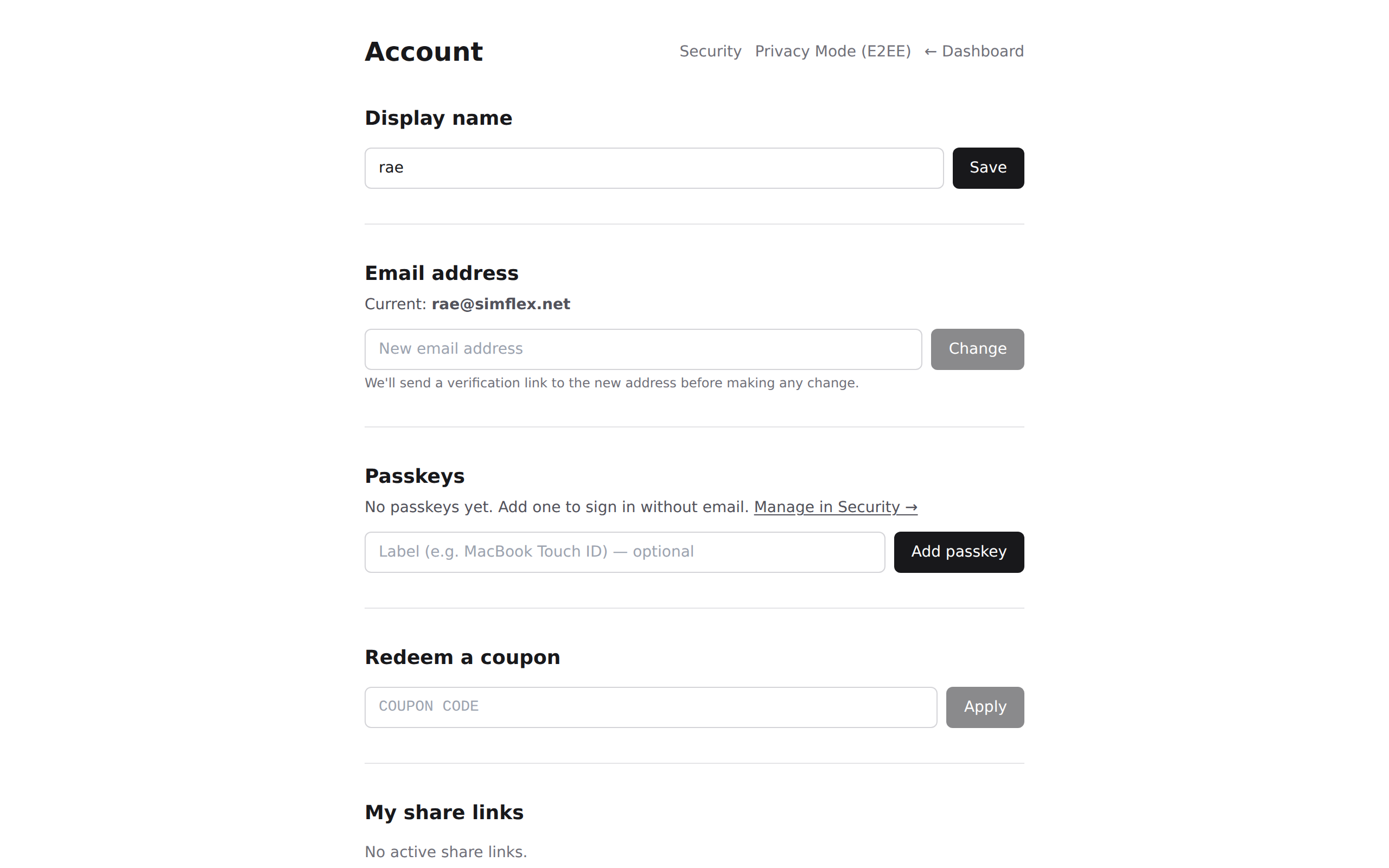
Create an account at app.bookmarkminder.com. Sign in with a passkey (fingerprint, Face ID, or a hardware security key) or a one-time link sent to your email — there is no traditional password for signing in.
On your first visit you'll be prompted to set up Privacy Mode with a vault passphrase. This is separate from your sign-in: it's used only in your browser to encrypt and decrypt your data. Choose something you can remember, and keep the recovery kit it generates somewhere safe. See the Privacy Mode section below for details on why these two credentials are different.
Once your vault is set up, add your first bookmark by pressing N or clicking the + New button in the toolbar.
Privacy Mode
Two credentials, two purposes
Bookmark Minder uses two separate credentials that serve completely different functions. Understanding this makes the product a lot less confusing.
- 1. Sign-in credential — a passkey (biometric or hardware key) or a one-time email link. This proves your identity to our servers. We don't have a password for this step by design: passkeys and magic links are phishing-resistant and don't require you to remember anything.
- 2. Vault passphrase — a password you choose that is used only inside your browser to unlock your encrypted data. It is never sent to our servers. We cannot see it, reset it on your behalf, or use it to access your bookmarks.
Why the vault passphrase exists at all
Your bookmark titles, notes, and tags are encrypted before they leave your device using a key that is derived from your vault passphrase. Because the key never reaches our servers, nobody — including us — can read your data without it. The sign-in credential only opens the door to the app; the vault passphrase unlocks the contents inside.
If we used your sign-in credential (passkey or email link) as the encryption key, we would have to participate in key derivation, which would break the end-to-end guarantee. Keeping them separate is what makes true E2EE possible.
Typical session flow
- Sign in with your passkey or email link — takes a few seconds.
- Enter your vault passphrase once to unlock Privacy Mode — your data decrypts in the browser and the key is held in memory for the session.
- When you sign out, close the tab, or click Lock now, the key is erased from memory.
Changing your vault passphrase
While Privacy Mode is unlocked, go to Settings → Privacy Mode and click Change passphrase. Your encrypted data is not re-encrypted — only the passphrase used to unlock the encryption key changes. The update is atomic: if anything goes wrong mid-save, your old passphrase continues to work.
If you forget your vault passphrase
Use your recovery kit — the 24-word phrase you received when you first set up Privacy Mode. Go to Settings → Privacy Mode → Recover with recovery kit, enter the words in order, and you'll be prompted to set a new passphrase. Keep the recovery kit somewhere offline and secure.
If you lose both your passphrase and your recovery kit, your encrypted data cannot be recovered — by you or by us. There is no back door. This is the trade-off for true E2EE.
Saving bookmarks
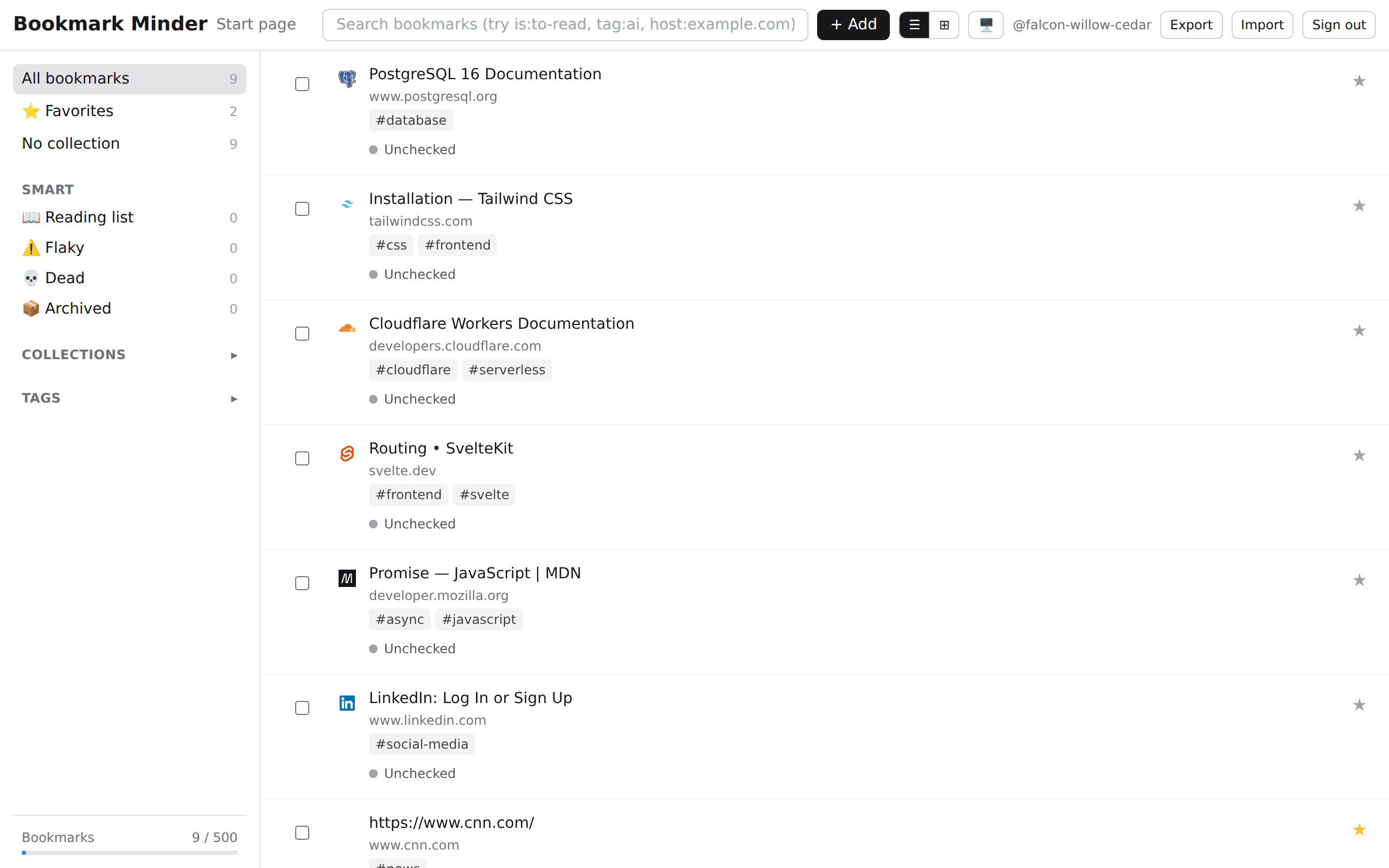
Press N anywhere in the app to open the new-bookmark modal. The URL is required; title, description, tags, and collection are optional.
Tags are free-form labels separated by commas. A bookmark can belong to multiple tags and one collection. The URL, title, description, and notes are encrypted before they leave your browser — your data is unreadable to anyone who does not know your vault passphrase.
Importing bookmarks
Go to Settings → Import to upload a browser bookmark file. Chrome, Firefox, Safari, and Edge all export in HTML format from their bookmark managers.
The importer reads the folder structure and maps each folder to a collection. Bookmarks that already exist in your vault (matched by URL) are skipped, so re-importing is safe.

Organizing with tags and collections
Tags are flexible labels. A bookmark can have any number of them and the same tag can appear on many bookmarks. Use them for topics, projects, or status (e.g. "to-read").
Collections work like folders. A bookmark belongs to one collection at a time. Collections show up in the left sidebar; click one to filter the list.
You can combine a collection filter with tag filters and a search query at the same time. All filters are applied together, so narrowing down a large library is fast.

Searching
Search runs entirely in your browser against the decrypted vault — nothing is sent to a server. Type any word from the title, URL, description, or notes to find a match.
Supported search operators:
tag:name— bookmarks with a specific tagis:unread— bookmarks you haven't opened yetis:favorited— bookmarks you've starredhost:domain.com— all bookmarks from a specific sitebefore:YYYY-MM-DD— bookmarks saved before a dateafter:YYYY-MM-DD— bookmarks saved after a date
Operators can be combined with plain text in a single query.
Exporting your data
Go to Settings → Data and click Export. You'll get a JSON file with all your bookmarks, tags, and collections. There is no paywall on export — it's available on every plan.
The exported file includes plaintext URLs and titles (decrypted at export time), so keep it somewhere private.
Sharing
Open a bookmark's detail panel and click the share icon to generate a public link. Anyone with the link can view that bookmark. You can revoke the link at any time from the same panel.
Collections can also be shared as a whole. When you share a collection, the recipient sees all bookmarks in it at the time they visit the link. For private collections, E2EE sharing lets you share an encrypted bundle — only someone with the key you provide can decrypt it.
Account recovery
When you first set up your vault, you're given a recovery kit — a set of words you can use to restore access if you forget your passphrase. Download it and store it somewhere safe (printed and in a physical location is a good option).
If you lose your passphrase and don't have the recovery kit, your vault cannot be recovered. This is intentional: because your data is encrypted with a key only you hold, there is no back door. Bookmark Minder cannot decrypt your vault for you.
To use the recovery kit, go to the login page and choose Recover account. Enter your recovery words in order and you'll be prompted to set a new passphrase.

Browser extension
The Bookmark Minder Chrome extension lets you save the current tab to your vault without leaving the page. It uses the same session as the web app — no separate login required.
Installation
- Sign in to app.bookmarkminder.com in Chrome.
- Install the extension from the Chrome Web Store.
- Click the Bookmark Minder icon in the toolbar — it should show the current page URL and a Save button.
Saving a page
Click the toolbar icon and press Save, or use the keyboard shortcut:
- Ctrl+Shift+B on Windows and Linux
- ⌘+Shift+B on macOS
The page is saved immediately. If your vault is unlocked in the web app, the bookmark is encrypted before it reaches the server.
Session handling
The extension shares your browser's session cookie with the web app. If you're signed out, the popup shows a Sign in button that opens the login page. The extension does not store credentials of its own.
Keyboard shortcuts
| Key | Action |
|---|---|
| N | New bookmark |
| ⌘K or / | Command palette |
| Ctrl+A | Select all |
| Esc | Close / deselect |